
back arrow icon Go Back

Related Articles

A Buyer's Account

As a Buyer you can search for a home, mark properties as favorites, make offers, communicate with sales representatives, invite an agent to represent you, manage your profile and have access to your Buyer's dashboard. 
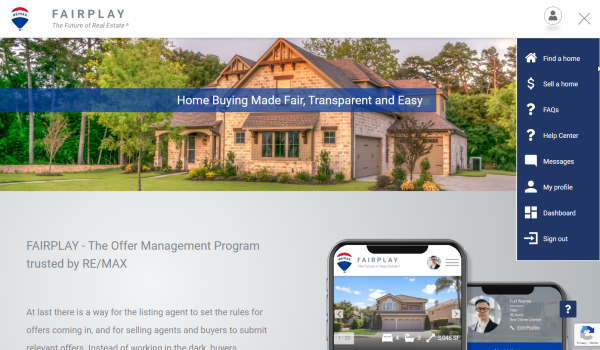
To access your profile page, click "Profile" just under your initials in the top-right of the screen (red rectangle on desktop) or click the blue circle with your initials at the bottom-center of the screen (red square on mobile). On your profile page, you can edit your account information and upload a user image (avatar) that will appear in place of your initials. To upload an image, click on the pencil/edit icon (circled in red in the first screenshot below) then click the first icon on the left (second screenshot). Once your image is uploaded, you have the ability to rotate the image 90 degrees to the left or right, zoom in or out, or reset the image. When you are satisfied with your image, click the blue "Save" button.

To manage permissions for the emails and texts that are sent to you, click on Notifications.


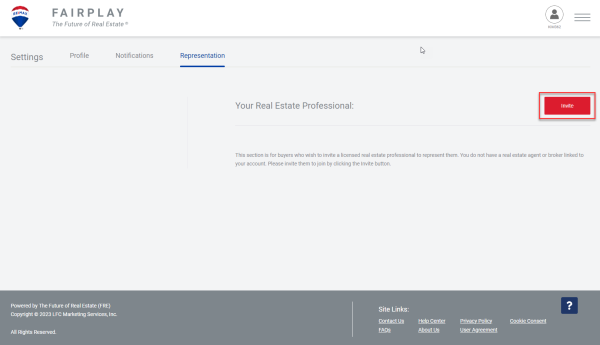
In the "Representation" section you can invite a real estate professional to represent you or even remove them as your representative. To invite your real estate agent, go to the representation page in your profile and click the blue "Invite" button. This will prompt you to type in their name and email address, and a link will be sent to them that will allow them to create an agent profile and represent you.

To sign out, click the "Sign Out" section from your profile page.

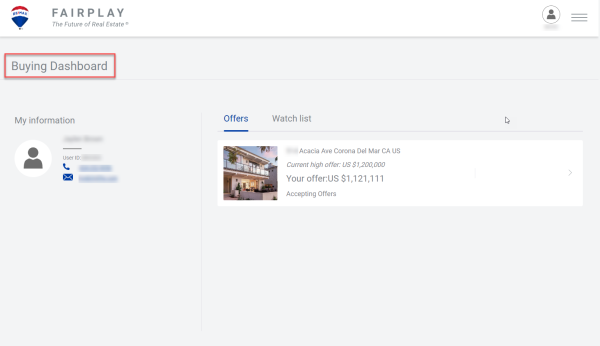
Your Buyer's Dashboard conveniently displays all your favorite properties, and the properties you've made offers on.  To access it click on "Dashboard" in the menu, or on mobile the dashboard icon is the second icon from the left.

From here you can review each property, add or edit an offer, and communicate with your real estate professional or a sales representative of a specific property.


days
hours
mins
secs
Ended